








1. Introduction
In my previous posts, Smart View for Google Workspace and Smart View for Google Workspace – Part 2, I covered the initial setup, installation from the Google Workspace Marketplace, and how to get started with Oracle Smart View in Google Sheets. Since then, I’ve spent more time working with the extension and have gathered some practical tips, tricks, and lessons learned that I want to share with you.
EPM Lab – Smart View for Google Workspace
EPM Lab – Smart View for Google Workspace – Part 2
This post focuses on the day-to-day experience of using Smart View in Google Sheets – what works well, where you might run into friction, and how to make your workflow as smooth as possible. I’ll also include a detailed comparison table so you can see exactly how the Google Sheets version stacks up against the PC, macOS, and Web ad-hoc experiences.
2. Connecting to Smart View
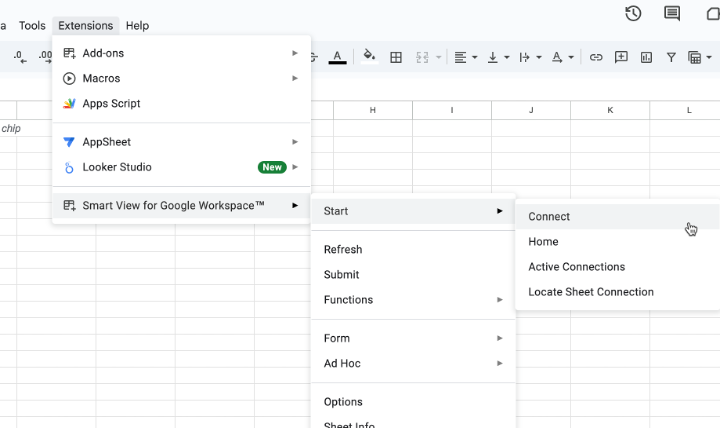
The connection process remains the same as described in my previous posts. Navigate to Extensions → Smart View for Google Workspace™ → Start → Connect.
Single Sign-On (SSO) Configuration
If your organization uses SSO, check the Company Sign In checkbox and enter the required credentials: Server URL, Client ID, and IDCS URL. These values should be provided by your system administrator.
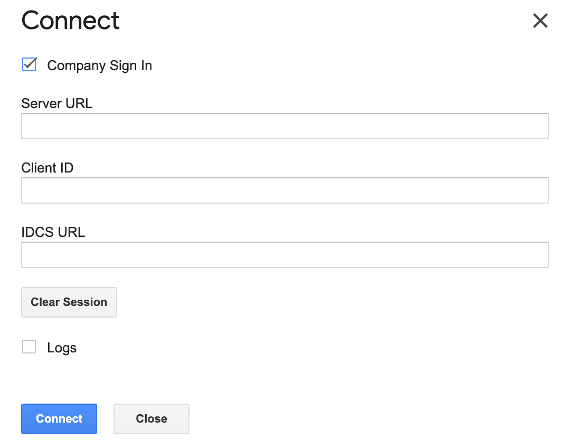
⚠️ Tip: Do NOT check the “Logs” checkbox unless you are actively working with the Oracle product team to debug a specific issue. Enabling Logs will significantly impact performance.
Once the credentials are entered, click Connect to authenticate via access token. After a successful connection, you will see the confirmation message below.

Navigating the Smart View Home
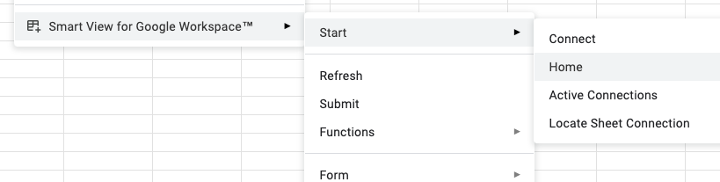
After connecting, click Start → Home to open the Smart View Home page. From here, you can browse the Library to connect to cubes or open forms – this works the same way as the macOS version.
Data Analysis
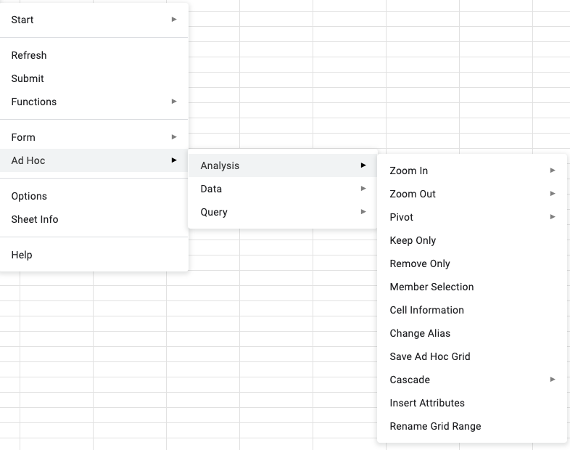
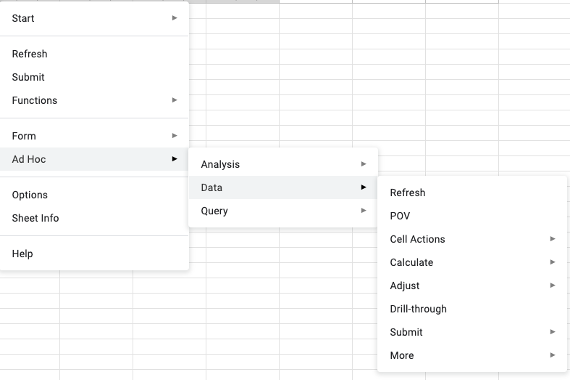
To perform data analysis, navigate to Ad Hoc → Analysis or Ad Hoc → Data. The Analysis submenu gives you access to operations like Zoom In, Zoom Out, Pivot, Keep Only, Remove Only, Member Selection, and more. The Data submenu provides access to Refresh, POV, Cell Actions, Calculate, Adjust, Drill-through, and Submit.
Working with Forms
Once a form is opened, you can use Form → Analysis → Member Selection to change the POV members. If you want to convert the form into an ad hoc grid for deeper analysis, use Form → Ad Hoc → Analyze. This is a handy trick when you need more flexibility than what the form layout provides.
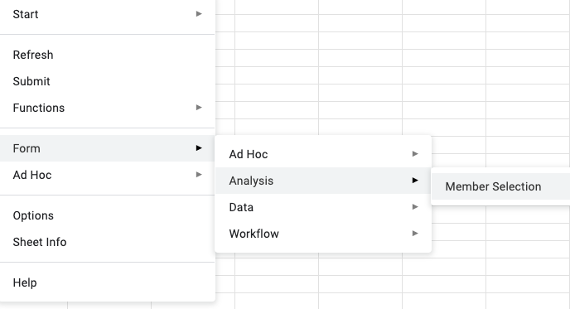
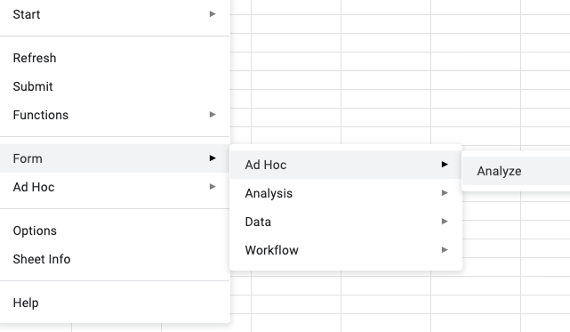
As you can tell, using Smart View in Google Sheets to do analysis involves a LOT of menu navigation. You have to drill through multiple layers of submenus to get to the action you need. This is one of the key differences compared to the PC version, where many of these options are available via the ribbon or right-click context menus.
3. Favorites – A Time Saver
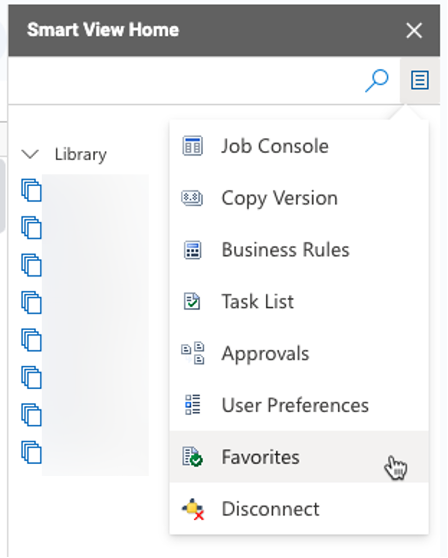
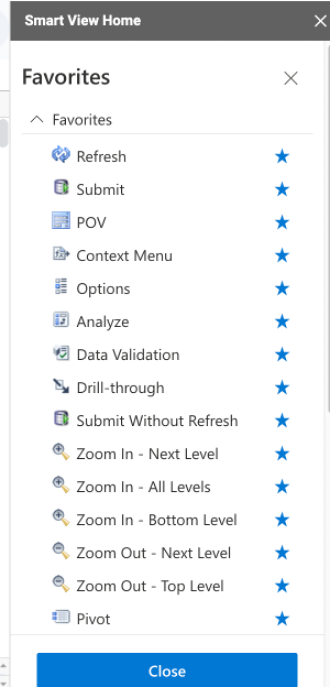
I’m glad Oracle released the Favorites feature. This lets you bookmark frequently used functions, making it significantly quicker to navigate Smart View without going through multiple layers of menus every time. You can access Favorites from the Smart View Home panel.
The Favorites panel lists all your bookmarked actions in one place – Refresh, Submit, POV, Context Menu, Analyze, Drill-through, Zoom In/Out, Pivot, and more. This is a must-use feature if you spend a lot of time in Google Sheets Smart View.
4. Considerations & Lessons Learned
Session Timeouts
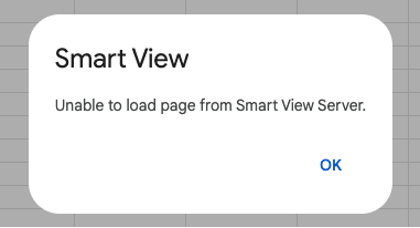
You may get logged off after a period of inactivity. If you see the message “Unable to load page from Smart View Server”, it means your session has expired and you need to reconnect.
Response Time & “Working” Indicator
Sometimes the response time can take longer than expected. When this happens, you’ll see the “Working” indicator. Be patient and avoid clicking multiple times, as this can queue up additional requests and slow things down further.

More Clicks Required
In general, the Google Sheets version of Smart View requires more clicks to accomplish the same tasks compared to the PC or even the macOS versions. There is no dedicated ribbon or tab for Smart View in Google Sheets – everything lives under the Extensions menu. My hope is that Oracle will continue to improve the user experience with future releases.
5. Feature Comparison: PC vs macOS vs G-Sheet vs Web
The following comparison table provides a side-by-side view of feature availability across all Smart View platforms. This should help you understand the current capabilities and limitations of each version.
| Features | PC | macOS | G-Sheet | Web ad-hoc |
| Open Forms | Yes | Yes | Yes | No |
| Ad hoc analysis | Yes | Yes | Yes | Yes |
| Run calculations | Yes | Yes | Yes | Yes |
| Drill Through | Yes | Yes | Yes | No |
| Double click to zoom in | Yes | No | No | Yes |
| Double click to zoom out | Yes | No | No | No |
| Drag and Drop | Yes | No | No | Yes |
| Open forms and ad hoc from web | Yes | No | No | No |
| Strategic Modeling | Yes | No | No | No |
| Word and PowerPoint | Yes | No | No | N/A |
| Essbase support | Yes | No | No | No |
| ERP support | Yes | No | No | N/A |
| Query Designer | Yes | No | No | No |
| Composite forms | Yes | No | No | No |
| VBA | Yes | No | No | No |
| Auto update | No | No | Yes | N/A |
| * Response time | Fast | Fine* | OK* | Fast |
* Response time may vary depending on network conditions, cube size, and server load.
Final Thoughts
Smart View for Google Sheets continues to evolve and is a welcome addition for users who work primarily within the Google ecosystem. While it still requires more clicks and navigation compared to the PC version, features like Favorites help bridge the gap and make the experience more efficient.
My key takeaways from using Smart View in Google Sheets:
- Keep Logs disabled – enabling it slows down performance significantly.
- Use Favorites – bookmark the functions you use most to reduce the number of clicks.
- Be patient with response times – avoid clicking multiple times when you see the “Working” indicator.
- Reconnect when needed – session timeouts are normal; just re-authenticate.
- PC version is still the most complete – but G-Sheet Smart View is a solid supplement for Google-first teams.
There’s still more to come as Oracle continues to improve the Google Sheets experience. I’ll keep covering updates and new features in future posts. Hope you found this helpful.